Saturday, April 9, 2016
 12:19 AM

Thursday, April 7, 2016
 12:17 PM
 Worldwebsite
 1 comment
1. Choose right edition of EaseUS Partition Master and install it. After that, launch EaseUS Partition Master.
2. Select dynamic disk which you want to Convert to basic disk on the disk map, click "Disk" on main menu and choose "Convert to basic disk" or right click the dynamic disk and choose "Convert to basic disk".

3. Click "Apply" to convert dynamic disk to basic disk. After EaseUS Partition Master applies these changes, you will see the dynamic disk has become basic disk in Windows Disk Management. And then you can use "Resize/Move partition" feature to resize partitions on the basic disk. (Tips: It is important to backup data before resizing partition, because nothing is 100% secure.)
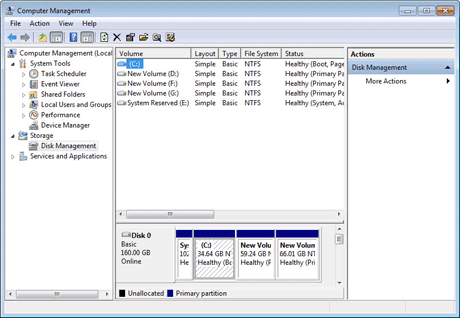
Case 2: Convert dynamic disk to basic disk with disk management
To convert mirrored volumes, you need to break mirrored volumes by using Windows Disk Management and then convert dynamic disk to basic disk with the "Convert to basic disk" feature of EaseUS Partition Master.
1. Right click "My Computer" and choose "Manage" -> "Storage" -> "Disk Management", right click the mirrored volumes and choose "Break Mirrored Volume" to break mirrored volumes or choose "Remove Mirror" to remove mirror. If the boot/system partition is on the mirrored volumes, you can only choose "Remove Mirror" to remove mirror. Please backup your important data before this operation.

2. After choosing "Break Mirrored Volume" or "Remove Mirror", the mirrored volumes will become simple volumes. Follow the steps in Case 1 to complete converting dynamic disk containing simple volumes to basic disk.
- 11:35 AM
- Worldwebsite
- 1 comment
To reactivate a dynamic disk by using the Windows interface
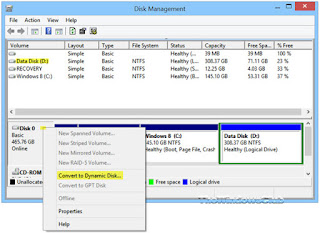

- In Disk Management, right-click the disk marked Missing or Offline.
- Click Reactivate Disk. The disk should be marked Online after the disk is reactivated.
To reactivate a dynamic disk by using a command line
- Open a command prompt and type
diskpart. - At the DISKPART prompt, type
list disk. Make note of the disk number of the missing or offline disk that you want to bring online. Missing disks are numbered M0, M1, M2, and so on, and offline disks are numbered 0, 1, 2, and so on. - At the DISKPART prompt, type
select disk <disknumber>. - At the DISKPART prompt, type
online.
- 3:47 AM
- Worldwebsite
- No comments
Method 1
- Back up or move the data on the basic master boot record (MBR) disk you want to convert into a GUID partition table (GPT) disk.
- If the disk contains any partitions or volumes, right-click any volumes on the disk and then click Delete Partition or Delete Volume.
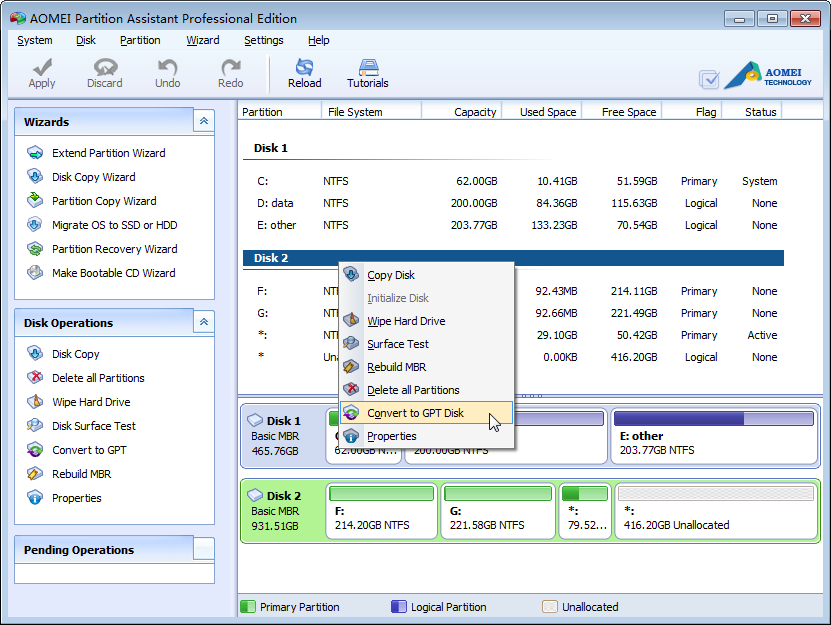
- Right-click the MBR disk that you want to change into a GPT disk, and then click Convert to GPT Disk.
Method 2
- Back up or move the data on the basic master boot record (MBR) disk you want to convert into a GUID partition table (GPT) disk.
- Open an elevated command prompt (right-click Command Prompt, and then click Run as Administrator) and type
diskpart. If the disk does not contain any partitions or volumes, skip to step 6. - At the DISKPART prompt, type
list disk. Make note of the disk number you want to convert. - At the DISKPART prompt, type
select disk <disknumber>. - At the DISKPART prompt, type
clean.6. At the DISKPART prompt, typeconvert gpt.
- 3:45 AM
- Worldwebsite
- No comments
Method 1
- Back up or move all volumes on the basic GUID partition table (GPT) disk you want to convert into a master boot record (MBR) disk.
- If the disk contains any partitions or volumes, right-click any volumes on the disk and then click Delete Volume.
- Right-click the GPT disk that you want to change into an MBR disk, and then click Convert to MBR disk.
Method 2
- Back up or move all volumes on the basic GUID partition table (GPT) disk you want to convert into a master boot record (MBR) disk.
- Open an elevated command prompt and type
diskpart. If the disk does not contain any partitions or volumes, skip to step 6. - At the DISKPART prompt (right-click Command Prompt, and then click Run as Administrator), type
list disk. Make note of the disk number you want to delete. - At the DISKPART prompt, type
select disk <disknumber>. - At the DISKPART prompt, type
clean.6. At the DISKPART prompt, typeconvert mbr.
- 3:40 AM
- Worldwebsite
- No comments
- Back up all volumes on the disk you want to convert from dynamic to basic.
- In Disk Management, right-click each volume on the dynamic disk you want to convert to a basic disk, and then click Delete Volume for each volume on the disk.
- When all volumes on the disk have been deleted, right-click the disk, and then click Convert to Basic Disk.
- 3:38 AM
- Worldwebsite
- No comments
- Back up all volumes on the disk you want to convert from dynamic to basic.
- Open a command prompt and type
diskpart. - At the DISKPART prompt, type
list disk. Make note of the disk number you want to convert to basic. - At the DISKPART prompt, type
select disk <disknumber>. - At the DISKPART prompt, type
detail disk <disknumber>. - For each volume on the disk, at the DISKPART prompt, type
select volume= <volumenumber>and then typedelete volume. - At the DISKPART prompt, type
select disk <disknumber>. Specify the disk number of the disk that you want to convert to a basic disk. - At the DISKPART prompt, type
convert basic.
Subscribe to:
Posts (Atom)